
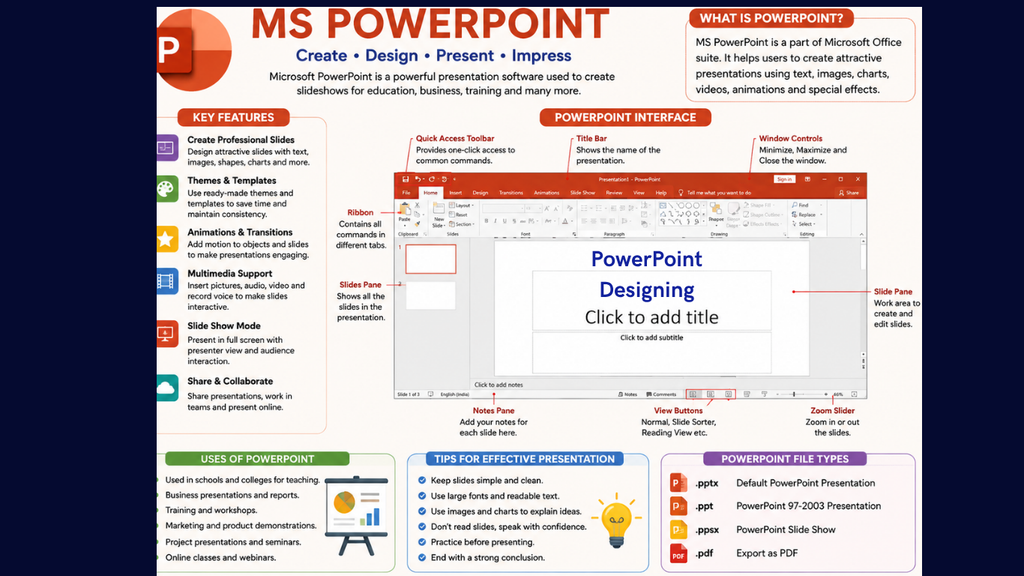
1. What is MS PowerPoint?
Microsoft PowerPoint is a presentation-making software developed by Microsoft. It is mainly used to create, edit, design, and present information in the form of slides.
PowerPoint allows us to combine text, pictures, charts, tables, shapes, SmartArt, audio, video, animations, and transitions to create attractive and professional presentations.
A PowerPoint presentation is made up of several pages called slides. Each slide can contain different types of information.
Simple Definition
MS PowerPoint is a presentation software used to create and display information through a collection of slides.
Examples of PowerPoint Use
- School and college presentations
- Business meetings
- Project presentations
- Teaching and training
- Seminars and workshops
- Marketing presentations
- Company reports
- Product demonstrations
- Online classes
- Job/project interviews
2. Main Features of MS PowerPoint
PowerPoint provides many features for creating professional presentations.
Important features include:
- Creating Slides
- Adding and Formatting Text
- Inserting Pictures
- Adding Shapes
- Creating Tables
- Creating Charts
- SmartArt Graphics
- Audio and Video
- Animations
- Slide Transitions
- Themes and Templates
- Slide Master
- Speaker Notes
- Hyperlinks
- Screen Recording
- Presenter View
- Printing Handouts
- Exporting to PDF
- Saving presentations
- Running Slide Shows
3. What is a Presentation?
A presentation is a collection of slides arranged in a particular order to communicate information to an audience.
For example:
Presentation Topic: Computer
- Slide 1 → Title
- Slide 2 → What is a Computer?
- Slide 3 → Characteristics
- Slide 4 → Parts of Computer
- Slide 5 → Types of Computer
- Slide 6 → Uses of Computer
- Slide 7 → Advantages
- Slide 8 → Conclusion
4. What is a Slide?
A slide is a single page or screen of a PowerPoint presentation.
A slide can contain:
- Text
- Images
- Tables
- Charts
- Shapes
- SmartArt
- Audio
- Video
- Graphs
- Hyperlinks
For example:
┌─────────────────────────────────────────┐
│             MY COMPUTER                 │
│                                         │
│      [Computer Image]                   │
│                                         │
│  A computer is an electronic machine    │
│  used to process data.                  │
│                                         │
└─────────────────────────────────────────┘
5. Starting MS PowerPoint
To open PowerPoint in Windows:
Method 1
Start → All Apps → Microsoft Office → PowerPoint
Method 2
Press:
Windows Key → Type “PowerPoint” → Enter
Method 3
Press:
Windows + S → Type PowerPoint → Enter
6. PowerPoint Interface
When PowerPoint opens, you will see several important parts.
Important Parts of PowerPoint Window
1. Title Bar
The Title Bar appears at the top of the window.
It displays the name of the current presentation.
Example:
Presentation1 – PowerPoint
2. Quick Access Toolbar
The Quick Access Toolbar provides quick access to commonly used commands.
Common commands:
- Save
- Undo
- Redo
3. File Tab
The File tab opens the Backstage View.
It contains options such as:
- New
- Open
- Save
- Save As
- Share
- Export
- Close
- Account
- Options
4. Ribbon
The Ribbon contains PowerPoint’s commands and tools.
Important Ribbon tabs include:
- Home
- Insert
- Draw
- Design
- Transitions
- Animations
- Slide Show
- Review
- View
Some versions may have slightly different tabs.
7. Home Tab
The Home tab contains the most frequently used commands.
It includes groups such as:
Clipboard
- Cut
- Copy
- Paste
- Format Painter
Slides
- New Slide
- Layout
- Reset
- Section
Font
- Font Name
- Font Size
- Bold
- Italic
- Underline
- Font Color
Paragraph
- Bullets
- Numbering
- Alignment
- Line Spacing
Drawing
- Shapes
- Arrange
- Shape Fill
- Shape Outline
Editing
- Find
- Replace
- Select
8. Insert Tab
The Insert tab is used to add different objects to a slide.
You can insert:
- Table
- Pictures
- Shapes
- Icons
- SmartArt
- Charts
- Text Box
- WordArt
- Audio
- Video
- Hyperlinks
- Header & Footer
- Equation
- Symbol
Example
If you want to add a photograph:
Insert → Pictures → Select Picture → Insert
9. Design Tab
The Design tab is used to change the overall appearance of your presentation.
It provides:
- Themes
- Variants
- Slide Size
- Format Background
Theme
A theme is a predefined combination of:
- Colors
- Fonts
- Effects
- Background styles
Themes help create a consistent design throughout the presentation.
10. Transitions Tab
A transition is a visual effect that occurs when moving from one slide to another.
Examples:
- Fade
- Push
- Wipe
- Split
- Reveal
- Morph
How to Apply a Transition
- Select a slide.
- Open Transitions.
- Select a transition.
- Set Duration if required.
- Click Apply to All if you want the same transition on every slide.
Important Difference
Transition = Effect between slides
Animation = Effect on objects within a slide
11. Animations Tab
Animations are effects applied to objects on a slide.
For example, you can make a heading:
- Appear
- Fly in
- Fade
- Zoom
- Float in
Four Main Types of Animation
1. Entrance
Makes an object enter the slide.
Examples:
- Appear
- Fade
- Fly In
2. Emphasis
Highlights an existing object.
Examples:
- Spin
- Grow/Shrink
- Pulse
3. Exit
Makes an object leave the slide.
Examples:
- Disappear
- Fade
- Fly Out
4. Motion Paths
Moves an object along a specific path.
12. Slide Show Tab
The Slide Show tab is used to present your slides.
Important options include:
- From Beginning
- From Current Slide
- Presenter View
- Set Up Slide Show
- Rehearse Timings
- Record Slide Show
Shortcut
F5 → Start presentation from beginning.
Shift + F5 → Start presentation from current slide.
13. Review Tab
The Review tab provides tools for reviewing a presentation.
It includes:
- Spelling
- Comments
- Language
- Accessibility
- Compare
- Check Accessibility
Spell Check
You can check spelling mistakes using:
Review → Spelling
Shortcut:
F7
14. View Tab
The View tab controls how you view your presentation.
Important views include:
Normal View
Used for creating and editing slides.
Outline View
Displays the text structure of the presentation.
Slide Sorter View
Displays all slides as thumbnails.
Useful for:
- Rearranging slides
- Copying slides
- Deleting slides
- Applying transitions
Notes Page
Used to view and edit speaker notes.
Reading View
Allows you to preview the presentation inside the PowerPoint window.
15. Creating a New Presentation
To create a presentation:
File → New → Blank Presentation
or use:
Ctrl + N
You can also select a predefined template.
16. Creating a New Slide
To add a new slide:
Home → New Slide
Shortcut:
Ctrl + M
PowerPoint provides different slide layouts.
Examples:
- Title Slide
- Title and Content
- Section Header
- Two Content
- Comparison
- Title Only
- Blank
17. Slide Layout
A slide layout determines where different objects will be placed on a slide.
For example:
Title Slide

┌─────────────────────────┐
│       TITLE             │
│                         │
│      SUBTITLE           │
└─────────────────────────┘
Another example:
Title and Content

┌─────────────────────────┐
│        TITLE            │
├─────────────────────────┤
│                         │
│     CONTENT AREA        │
│                         │
└─────────────────────────┘
18. Adding Text
To add text:
- Select a text placeholder.
- Click inside it.
- Type your text.
You can format text using:
- Font
- Font Size
- Bold
- Italic
- Underline
- Color
- Alignment
- Bullets
- Numbering
19. Adding Pictures
Pictures make presentations more attractive and easier to understand.
Steps:
Insert → Pictures → Select Picture → Insert
You can then:
- Resize the picture
- Crop it
- Rotate it
- Add borders
- Apply picture effects
- Remove background
20. Adding Shapes
PowerPoint provides many shapes.
Examples:
- Rectangle
- Circle
- Triangle
- Arrow
- Star
- Callout
- Flowchart shapes
Shapes can be used to create:
- Diagrams
- Flowcharts
- Buttons
- Infographics
- Organizational charts
21. Adding Tables
Tables are useful for presenting information in rows and columns.
Steps:
Insert → Table → Select Rows and Columns
Example:
| Student | Marks | Grade |
|---|---|---|
| Rahul | 85 | A |
| Aman | 76 | B |
| Priya | 92 | A+ |
22. Adding Charts
Charts are used to represent numerical data graphically.
Common chart types:
- Column
- Bar
- Line
- Pie
- Area
- Doughnut
- Scatter
Example
Suppose sales are:
| Year | Sales |
|---|---|
| 2024 | 50,000 |
| 2025 | 70,000 |
| 2026 | 90,000 |
A chart can show this information visually.
23. SmartArt
SmartArt is used to create professional diagrams quickly.
It can represent:
- Processes
- Cycles
- Hierarchies
- Relationships
- Lists
- Pyramids
Example:
Planning
   ↓
Design
   ↓
Development
   ↓
Testing
   ↓
Launch
24. WordArt
WordArt is used to create decorative text.
It can provide effects such as:
- Shadow
- Reflection
- Glow
- 3D effects
- Text outline
25. Adding Audio
You can add sound to a presentation.
Insert → Audio
Audio can be used for:
- Background music
- Narration
- Voice explanation
- Sound effects
26. Adding Video
PowerPoint allows you to insert videos into slides.
Insert → Video
Videos can make presentations more engaging and useful for teaching and demonstrations.
27. Hyperlink
A hyperlink connects text, pictures, or objects to another location.
It can link to:
- Another slide
- A website
- A file
- An email address
Shortcut:
Ctrl + K
28. Slide Master
Slide Master controls the common design and formatting of multiple slides.
It is useful when you want the same:
- Logo
- Font
- Background
- Footer
- Page number
- Design
on many slides.
You can access it through:
View → Slide Master
29. Speaker Notes
Speaker Notes allow the presenter to write additional information that may not appear on the slide.
For example:
Slide: Computer Definition
Speaker Note:
“Explain that a computer accepts data, processes it, stores it and produces useful information.”
Notes help the presenter remember important points.
30. Saving a PowerPoint Presentation
To save:
File → Save
Shortcut:
Ctrl + S
The common PowerPoint file extension is:
.pptx
Older PowerPoint versions commonly used:
.ppt
31. Opening an Existing Presentation
To open an existing file:
File → Open
Shortcut:
Ctrl + O
Select the PowerPoint file and click Open.
32. Printing PowerPoint Slides
PowerPoint allows you to print:
- Full-page slides
- Notes pages
- Outline
- Handouts
Shortcut:
Ctrl + P
33. Exporting PowerPoint to PDF
You can convert your presentation into PDF.
Typical method:
File → Export → Create PDF/XPS
or:
File → Save As → PDF
PDF is useful when you want to share a presentation while preserving its layout.
34. Slide Show
A Slide Show displays the presentation in full-screen mode.
Start from Beginning
Press:
F5
Start from Current Slide
Press:
Shift + F5
During presentation:
- Right Arrow → Next slide
- Left Arrow → Previous slide
- Esc → Exit slide show
35. Transition vs Animation
This is an important topic for students.
| Transition | Animation |
|---|---|
| Applied to slides | Applied to objects |
| Happens between slides | Happens within a slide |
| Example: Fade between slides | Example: Text Fly In |
| Controls slide change | Controls object movement |
Easy Example
If Slide 1 changes to Slide 2 with Fade, that is a Transition.
If the heading on Slide 2 appears with Fly In, that is an Animation.
36. Important PowerPoint Shortcut Keys
| Shortcut | Function |
|---|---|
| Ctrl + N | New presentation |
| Ctrl + O | Open presentation |
| Ctrl + S | Save |
| Ctrl + Shift + S | Save As |
| Ctrl + P | |
| Ctrl + M | New slide |
| Ctrl + D | Duplicate object/slide |
| Ctrl + C | Copy |
| Ctrl + X | Cut |
| Ctrl + V | Paste |
| Ctrl + Z | Undo |
| Ctrl + Y | Redo |
| Ctrl + A | Select all |
| Ctrl + K | Insert hyperlink |
| Ctrl + F | Find |
| F5 | Start slideshow |
| Shift + F5 | Start from current slide |
| Esc | Exit slideshow |
| F7 | Spelling |
| Delete | Delete selected object |
| Ctrl + G | Group objects |
| Ctrl + Shift + G | Ungroup objects |
37. Advantages of MS PowerPoint
1. Easy to Use
PowerPoint has a user-friendly interface.
2. Attractive Presentations
You can create visually appealing presentations using themes, images, animations, and transitions.
3. Multimedia Support
It supports:
- Pictures
- Audio
- Video
- Charts
- Graphics
4. Useful for Education
Teachers can use PowerPoint to explain lessons visually.
5. Useful for Business
Businesses can use presentations for meetings, reports, marketing, and training.
6. Easy Sharing
Presentations can be shared as:
- PPTX
- Video
38. Limitations of PowerPoint
Despite its advantages, PowerPoint also has some limitations.
- Poor design can make a presentation unattractive.
- Too much text can make slides difficult to understand.
- Excessive animations can distract the audience.
- Large multimedia files can increase presentation size.
- A presentation depends heavily on the presenter’s communication skills.
39. Tips for Making a Good PowerPoint Presentation
Follow these rules:
- Keep slides simple.
- Use short sentences.
- Avoid excessive text.
- Use readable fonts.
- Maintain consistent formatting.
- Use relevant images.
- Don’t use too many animations.
- Use charts for numerical information.
- Maintain proper alignment.
- Check spelling and grammar.
- Use high-quality visuals.
- Practice before presenting.
40. Example of a PowerPoint Presentation
Topic: MS Excel
Slide 1 – Title
MS Excel
Introduction to Spreadsheet
Slide 2 – What is MS Excel?
- Spreadsheet software
- Developed by Microsoft
- Used for data management
- Supports formulas and functions
Slide 3 – Features
- Worksheets
- Formulas
- Functions
- Charts
- Tables
- PivotTables
Slide 4 – Uses
- Accounting
- Salary calculation
- Attendance
- Data analysis
- Billing
Slide 5 – Conclusion
MS Excel is a powerful spreadsheet application used for organizing, calculating, analyzing, and presenting data.
41. PowerPoint Practical Course
If you are learning PowerPoint practically, follow this order:
Basic Level
- Introduction to PowerPoint
- Opening PowerPoint
- Creating presentation
- Creating slides
- Slide layouts
- Entering text
- Formatting text
- Saving presentation
- Opening presentation
Intermediate Level
- Pictures
- Shapes
- Tables
- Charts
- SmartArt
- WordArt
- Hyperlinks
- Audio
- Video
- Themes
- Background formatting
Advanced Level
- Animations
- Transitions
- Animation Pane
- Slide Master
- Speaker Notes
- Presenter View
- Rehearse Timings
- Record Presentation
- Custom Slide Show
- Export to PDF/video
Conclusion
MS PowerPoint is one of the most useful presentation applications for students, teachers, professionals, businesses, and trainers. It allows users to present information through slides using text, images, tables, charts, SmartArt, audio, video, animations, and transitions.
To become proficient in PowerPoint, you should learn it theory + practical, starting with slide creation and formatting and gradually moving to charts, SmartArt, animations, transitions, Slide Master, multimedia, and professional presentation design.
Pingback: LINK - hcomputer.in