
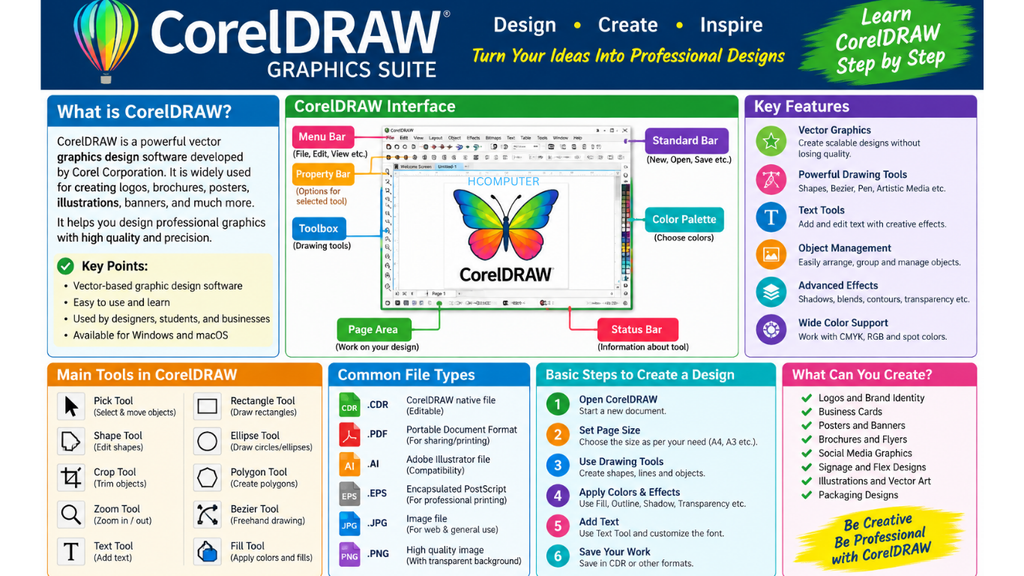
1. What is CorelDRAW?
CorelDRAW is a professional vector graphics and graphic designing software developed by Corel. It is widely used for creating logos, visiting cards, banners, brochures, posters, certificates, flex designs, advertisements, packaging designs and many other graphics.
CorelDRAW works mainly with vector graphics, which means designs can be enlarged or reduced without losing quality.
Common Uses of CorelDRAW
- Logo designing
- Visiting card designing
- Pamphlet and brochure designing
- Poster and banner designing
- Flex and hoarding designing
- Certificate designing
- Letterhead designing
- Invitation card designing
- ID card designing
- Sticker designing
- T-shirt and merchandise designs
- Packaging and label designs
- Social media graphics
2. Vector Graphics vs Raster Graphics
Vector Graphics
Vector graphics are created using lines, curves, shapes and mathematical paths.
Examples:
CorelDRAW, Adobe Illustrator, Inkscape
Advantages
- Can be resized without losing quality
- Suitable for logos and printing
- Objects can be edited individually
- File size can be relatively small for simple artwork
Raster Graphics
Raster images are made from pixels.
Examples: JPG, PNG, BMP, TIFF
Advantages
- Excellent for photographs
- Supports detailed color information
- Suitable for photo editing
Difference
| Vector | Raster |
|---|---|
| Made from paths/shapes | Made from pixels |
| Can scale without quality loss | May become pixelated |
| Best for logos/designs | Best for photographs |
| CorelDRAW | Photoshop |
3. CorelDRAW Interface
When CorelDRAW is opened, several important areas are visible.
Main Parts
- Title Bar – Displays the document/application name.
- Menu Bar – Contains commands such as File, Edit, View, Layout, Object, Effects, Bitmaps, Text, Table, Tools, Window and Help.
- Standard/Quick Access Toolbar – Provides frequently used commands.
- Property Bar – Displays options related to the selected tool or object.
- Toolbox – Contains drawing and editing tools.
- Drawing Page – Main area where artwork is created.
- Rulers – Help measure and position objects.
- Color Palette – Used to apply colors.
- Status Bar – Shows information about selected objects and document properties.
- Docker/Panels – Provide additional settings and controls.
- Scroll Bars – Used to move around the document.
- Zoom Controls – Used to zoom in and out.
4. Creating a New Document
To create a new design:
File → New
You can specify:
- Page size
- Page orientation
- Units
- Color mode
- Resolution-related settings where applicable
- Number of pages
Common Page Sizes
- A4 – 210 × 297 mm
- A3 – 297 × 420 mm
- A5 – 148 × 210 mm
- Letter – 8.5 × 11 inches
For printing work, always select the required page size before designing.
5. Pick Tool
The Pick Tool is one of the most important tools in CorelDRAW.
It is used to:
- Select objects
- Move objects
- Resize objects
- Rotate objects
- Skew objects
- Transform objects
Selecting an Object
Click the object using the Pick Tool.
Selecting Multiple Objects
Hold Shift and click additional objects.
Selecting Objects with a Selection Box
Drag around the objects you want to select.
6. Shape Tool
The Shape Tool is used to modify the shape of objects and edit nodes.
It is especially important when working with:
- Curves
- Custom shapes
- Rounded corners
- Node editing
Nodes
Nodes are points that control the shape of a curve or object.
You can:
- Add nodes
- Delete nodes
- Move nodes
- Convert nodes
- Join nodes
- Break curves
7. Rectangle Tool
The Rectangle Tool is used to create rectangular and square shapes.
Creating a Rectangle
- Select Rectangle Tool.
- Click and drag on the page.
- Release the mouse.
Creating a Square
Hold Ctrl while drawing.
Rectangles are commonly used for:
- Visiting cards
- Backgrounds
- Buttons
- Labels
- Certificates
- Frames
8. Ellipse Tool
The Ellipse Tool creates circles and oval shapes.
Creating a Circle
Hold Ctrl while dragging.
Uses
- Logos
- Buttons
- Badges
- Icons
- Decorative elements
- Infographics
9. Polygon Tool
The Polygon Tool creates multi-sided shapes.
Examples:
- Triangle
- Pentagon
- Hexagon
- Octagon
- Star-like shapes
The number of sides can be adjusted using the relevant property controls.
10. Star Tool
The Star Tool is used to create stars and decorative shapes.
It can be used for:
- Badges
- Awards
- Festival designs
- Certificates
- Promotional graphics
11. Freehand Tool
The Freehand Tool allows you to draw lines and curves manually using the mouse or drawing device.
It is useful for:
- Sketching
- Signatures
- Custom lines
- Illustrations
12. Bezier Tool
The Bezier Tool is very important for professional CorelDRAW designing.
It allows you to create:
- Straight lines
- Curved paths
- Custom shapes
- Logos
- Illustrations
You create a path by clicking points and controlling curves.
13. Pen Tool
The Pen Tool is used to create precise curves and paths.
It is useful for:
- Logo tracing
- Custom illustrations
- Smooth curves
- Vector artwork
14. Text Tool
The Text Tool is used to add text to a design.
There are two major types of text:
Artistic Text
Used for short text such as:
- Headings
- Logos
- Titles
- Names
Paragraph Text
Used for larger amounts of text such as:
- Articles
- Brochures
- Notices
- Information pages
15. Text Formatting
You can modify:
- Font
- Font size
- Bold
- Italic
- Underline
- Alignment
- Character spacing
- Line spacing
- Text color
Common Font Categories
- Serif
- Sans Serif
- Decorative
- Script
For professional designs, choose fonts according to the purpose and maintain readability.
16. Coloring Objects
CorelDRAW provides several ways to apply color.
Fill Color
Click a color from the color palette to apply a fill.
Outline Color
Right-click a color to apply it to the outline in many standard workflows.
You can also modify:
- Outline width
- Outline style
- Fill type
- Transparency
17. Fill Types
CorelDRAW supports different types of fills, including:
Uniform Fill
A single solid color.
Fountain/Gradient Fill
A gradual transition between colors.
Pattern Fill
Uses a pattern to fill an object.
Texture Fill
Creates textured appearances.
PostScript Fill
Provides specialized pattern effects.
18. Outline
An outline is the border around an object.
You can change:
- Outline color
- Width
- Style
- Corners
- Line endings
Outlines are useful for:
- Borders
- Logos
- Illustrations
- Decorative designs
19. Eyedropper Tool
The Eyedropper Tool is used to sample colors or properties from an existing object.
For example, if a design contains a particular blue color, you can sample that color and use it elsewhere.
20. Smart Fill Tool
The Smart Fill Tool can create a new object from enclosed areas.
It is useful when:
- Shapes overlap
- You need to create custom regions
- You want to quickly fill enclosed areas
21. Crop Tool
The Crop Tool is used to remove unwanted portions of objects or images.
It is particularly useful when working with imported photographs.
22. Zoom Tool
The Zoom Tool allows you to magnify or reduce your view of the document.
Zoom In
Increase the view size.
Zoom Out
Decrease the view size.
Remember: Zooming changes your view, not the actual size of the artwork.
23. Group and Ungroup
Group
Grouping combines multiple objects into one selection.
Shortcut: Ctrl + G
Example:
A logo may contain:
- Text
- Circle
- Symbol
- Decorative elements
You can group them so they move together.
Ungroup
Shortcut: Ctrl + U
It separates grouped objects.
24. Lock and Unlock Objects
Locking an object prevents accidental movement or editing.
Useful for:
- Backgrounds
- Guides
- Fixed design elements
- Templates
25. Align and Distribute
Alignment helps position objects accurately.
Common alignments include:
- Left
- Center
- Right
- Top
- Middle
- Bottom
Distribution helps maintain equal spacing between multiple objects.
Example
If you create 5 buttons, you can distribute them evenly instead of manually positioning each one.
26. Object Order
Objects can be placed in different stacking positions.
Common commands include:
- To Front
- To Back
- Forward One
- Back One
This is important when multiple objects overlap.
27. Duplicate Objects
To create a copy of an object, you can use:
Ctrl + D
Duplicating is useful for:
- Repeated shapes
- Patterns
- Multiple cards
- Icons
- Product labels
28. Transformations
Objects can be transformed in several ways.
Move
Change the object’s position.
Scale
Increase or decrease its size.
Rotate
Turn an object around a rotation point.
Mirror
Create a flipped version of an object.
Skew
Slant an object horizontally or vertically.
29. Weld
Weld combines two or more overlapping objects into one shape.
Example
Two circles can be welded together to create a custom shape.
30. Trim
Trim removes portions of an object based on overlapping objects.
Example:
A circle overlapping a rectangle can be used to cut part of the rectangle.
31. Intersect
Intersect creates a new object from the area where two objects overlap.
It is extremely useful for creating custom shapes.
32. Combine and Break Apart
Combine
Combines selected objects/curves into a single object or curve structure where appropriate.
Break Apart
Separates a combined object into individual components where applicable.
These commands are commonly used during logo and vector editing.
33. PowerClip
PowerClip is one of the most useful CorelDRAW features.
It allows you to place one object inside another object.
Example
You have a photograph and a circle.
You can place the photograph inside the circle to create a circular photo.
Common Uses
- Photo frames
- Product advertisements
- Creative posters
- Social media designs
- Brochures
34. Transparency
Transparency makes an object partially see-through.
It can be applied to:
- Shapes
- Images
- Text
- Background elements
It is useful for creating:
- Overlays
- Shadows
- Modern backgrounds
- Watermarks
35. Shadow Effects
Shadow effects can give designs depth.
They can be used for:
- Text
- Buttons
- Logos
- Product images
- Promotional graphics
Avoid excessive shadows because they can make designs look cluttered.
36. Contour
The Contour effect creates additional shapes around or inside an object.
It is commonly used for:
- Logos
- Badges
- Decorative text
- Sticker designs
37. Blend
The Blend effect creates intermediate objects between two objects.
It can create interesting:
- Patterns
- Decorative effects
- Illustrations
- Repeated shapes
38. Extrude
Extrude can create a three-dimensional appearance.
It is useful for:
- 3D text
- Logos
- Promotional graphics
39. Perspective
Perspective effects create the appearance of depth.
For example, text can be made to look like it is moving into the distance.
40. Working with Images
CorelDRAW can import raster images such as:
- JPG
- PNG
- TIFF
- BMP
Importing an Image
Use:
File → Import
Then select the required image.
Images can be:
- Resized
- Cropped
- Rotated
- PowerClipped
- Adjusted
- Traced
41. Bitmap and Vector
Bitmap
A bitmap consists of pixels.
Examples:
- JPG
- PNG
- TIFF
Vector
Vector graphics consist of paths and objects.
Examples:
- CDR
- SVG
- AI
- EPS
42. PowerTRACE
PowerTRACE is used to convert suitable bitmap images into vector artwork.
For example:
JPG Logo → PowerTRACE → Editable Vector Artwork
It is especially useful for tracing:
- Simple logos
- Line drawings
- Icons
- Illustrations
The quality of tracing depends heavily on the original image.
43. Layers and Object Management
Layers help organize complicated designs.
For example, a poster can contain:
Layer 1: Background
Layer 2: Images
Layer 3: Shapes
Layer 4: Text
Layer 5: Logo
Good organization makes editing easier.
44. Rulers and Guidelines
Rulers help measure object positions.
Guidelines help with accurate placement and alignment.
They are especially useful for:
- Visiting cards
- Certificates
- Brochures
- ID cards
- Printing layouts
45. Page Layout
Before designing for print, consider:
- Page size
- Orientation
- Margins
- Bleed requirements
- Color mode
- Resolution of imported images
- Final output format
46. RGB and CMYK
RGB
RGB stands for:
Red + Green + Blue
It is primarily used for digital screens.
Examples:
- Websites
- Social media
- Digital presentations
CMYK
CMYK stands for:
Cyan + Magenta + Yellow + Key/Black
It is commonly used for printing.
Examples:
- Visiting cards
- Brochures
- Posters
- Pamphlets
- Flyers
For professional printing, always confirm the printer’s required color settings and output specifications.
47. Printing
Before printing, check:
- Page size
- Orientation
- Margins
- Text
- Images
- Colors
- Bleed
- Fonts
- Resolution
- Number of copies
Always review the final design before sending it to print.
48. Exporting Files
CorelDRAW designs can be exported into various formats depending on the purpose.
Common formats include:
- CDR
- JPG/JPEG
- PNG
- SVG
- EPS
- TIFF
For Printing
PDF is commonly used, but the exact PDF settings should match the printer’s requirements.
For Web
PNG/JPG/SVG may be appropriate depending on the artwork.
49. Important CorelDRAW Shortcuts
| Shortcut | Function |
|---|---|
| Ctrl + N | New document |
| Ctrl + O | Open |
| Ctrl + S | Save |
| Ctrl + Shift + S | Save As |
| Ctrl + P | |
| Ctrl + Z | Undo |
| Ctrl + Shift + Z | Redo |
| Ctrl + X | Cut |
| Ctrl + C | Copy |
| Ctrl + V | Paste |
| Ctrl + D | Duplicate |
| Ctrl + G | Group |
| Ctrl + U | Ungroup |
| Delete | Delete selected object |
| Ctrl + A | Select all |
| Ctrl + F | Find/related commands depending on version/context |
| Ctrl + Q | Convert object to curves |
| Ctrl + K | Break apart |
| Ctrl + L | Combine |
| Ctrl + R | Repeat last operation in applicable contexts |
| F4 | Zoom to all objects |
| F5 | Freehand tool |
| F6 | Rectangle tool |
| F7 | Ellipse tool |
| F8 | Text tool |
| F10 | Shape tool |
| Spacebar | Switch temporarily to Pick Tool in many workflows |
Note: Shortcuts can vary by CorelDRAW version, workspace, operating system, and customization.
50. Professional Design Principles
Learning tools alone is not enough. Good graphic design also requires understanding design principles.
1. Alignment
Keep objects properly aligned.
2. Contrast
Use differences in size, color, weight, or shape to create emphasis.
3. Balance
Distribute visual elements properly.
4. Hierarchy
Make the most important information visually prominent.
5. Proximity
Keep related information together.
6. Consistency
Use consistent fonts, colors, spacing, and styles.
7. White Space
Do not fill every empty area. Empty space can improve readability.
51. Visiting Card Design – Practical Project
A beginner can create a professional visiting card using:
Front Side
- Company logo
- Person’s name
- Designation
- Phone number
- Website
- Address
Back Side
- Services
- Social media
- QR code
- Short tagline
Suggested Workflow
Page Setup → Background → Logo → Text → Icons → Alignment → Colors → Final Check → Export PDF
52. Poster Design – Practical Project
A poster generally contains:
- Main heading
- Supporting heading
- Image/illustration
- Important information
- Contact details
- Call-to-action
- Logo/branding
Example
ADMISSION OPEN
Computer Courses
- Basic Computer
- MS Office
- Tally
- CorelDRAW
- Web Designing
Contact Us Today
This is an excellent beginner project for practicing CorelDRAW.
53. Logo Designing – Practical Project
Steps
- Understand the brand.
- Sketch ideas.
- Create basic shapes.
- Use Bezier/Pen tools where required.
- Apply suitable colors.
- Add typography.
- Align objects.
- Convert suitable text to curves for final artwork.
- Create black-and-white versions.
- Export required formats.
Important Rule
A good logo should be:
- Simple
- Memorable
- Scalable
- Appropriate
- Readable
- Original
54. CorelDRAW Beginner-to-Advanced Course Structure
Level 1 – Basic
- Introduction to CorelDRAW
- Interface
- New document
- Page setup
- Selection
- Shapes
- Fill and outline
- Basic text
- Save and export
Level 2 – Intermediate
- Node editing
- Bezier/Pen
- Align and distribute
- Group/ungroup
- Weld
- Trim
- Intersect
- PowerClip
- Transparency
- Effects
- Image handling
Level 3 – Advanced
- Logo design
- Vector illustration
- Professional typography
- Packaging design
- Brochure design
- Print preparation
- Color management
- Bitmap tracing
- Advanced effects
- Multi-page projects
- Professional export
55. Practice Projects
For a complete CorelDRAW course, practice these projects in order:
- Basic shapes
- Name design
- Color combination exercise
- Simple logo
- Visiting card
- Letterhead
- Certificate
- ID card
- Invitation card
- Poster
- Pamphlet
- Brochure
- Product label
- Social media post
- Advertisement banner
- Flex banner
- Restaurant menu
- School/coaching advertisement
- Business logo
- Complete branding package